How to make a TikTok slideshow with text (step by step)
In this guide ›
To make a TikTok slideshow with text, tap Add post +, choose Photo, upload up to 35 images, tap Next, then add text to each photo with the Text tool. Or put the text on the images before you upload, for better fonts and the same look on every post.
Two ways to add text to a TikTok slideshow
| Text in the TikTok app | Text baked into the images | |
|---|---|---|
| Fonts | TikTok's built-in set | Any font you want |
| Consistency | Retyped and repositioned on every post | Same layout every time |
| Speed for one post | Fast | Slower unless you use a template or tool |
| Speed for many posts | Slow, all manual | Fast once the design is set |
| Best for | Quick one-off posts | Accounts that post often or have a brand |
Daily posters mostly bake text in. For the occasional post, the app is fine.
How to make a TikTok slideshow with text in the app
These steps follow TikTok's help page on making a post; button names can shift between app versions.
Step 1: Start a photo post
Open TikTok and tap the Add post + button at the bottom. Tap Photo, then Upload to pick images from your camera roll.
Step 2: Select and order your photos
Select the images in the order you want them to appear, up to 35 photos, then tap Next. For a text slideshow, 5 to 10 slides is a comfortable range for most topics.
Step 3: Add text to each photo
Swipe left and right to switch between photos. On each photo:
- Tap Text.
- Type your line.
- Choose a font, color and alignment, plus a background style if you want the text in a solid or semi-transparent box. Options depend on your app version.
- Tap Done.
Repeat on every slide that needs text.
Step 4: Position and size the text
Drag the text box to move it, pinch to resize and rotate with two fingers. Keep it inside the safe area described below, at the same size and position on every slide.
Step 5: Pick a sound
A slideshow without sound feels unfinished. A quiet, steady track works best behind text people need to read.
Step 6: Write the caption and post
Tap Next, edit the cover, add a description and hashtags, set privacy, then tap Post or Drafts. Put context and keywords in the description, not on the slides: people search TikTok like a search engine.
What about TikTok's Text post option?
TikTok's separate Text post type makes a single text card on a plain background, not a swipeable slideshow.
Where to put text so TikTok doesn't cover it
TikTok draws its own interface on top of your slides:
- Right side: the profile picture, like, comment, save and share buttons.
- Bottom: your username, description, sound name and the photo position indicator.
- Top: the Following and For You tabs and the search icon.
The safe area is the center, slightly above the middle. Keep a clear right margin and nothing important at the bottom, where longer descriptions take more space.
TikTok has no official safe zone for organic photo posts, only downloadable ones for ads on its In-Feed Ads specs page. The simplest check: post as private (Only you) and look on your phone.
The better way: put the text on the images before uploading
Designing text into the image lets you pick the font, size and colors and reuse the layout on every post.
Hand-drawn title
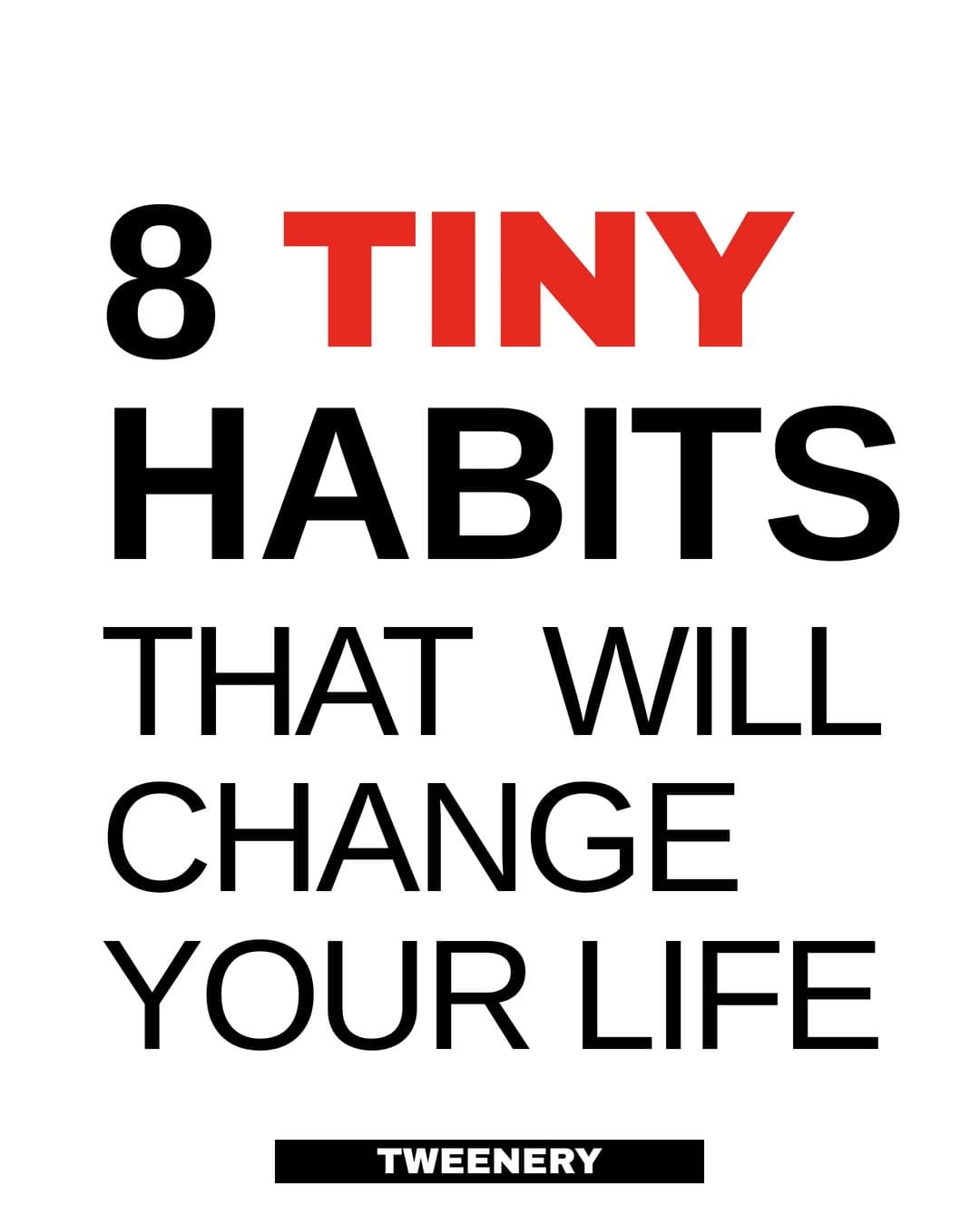
Bold number headline
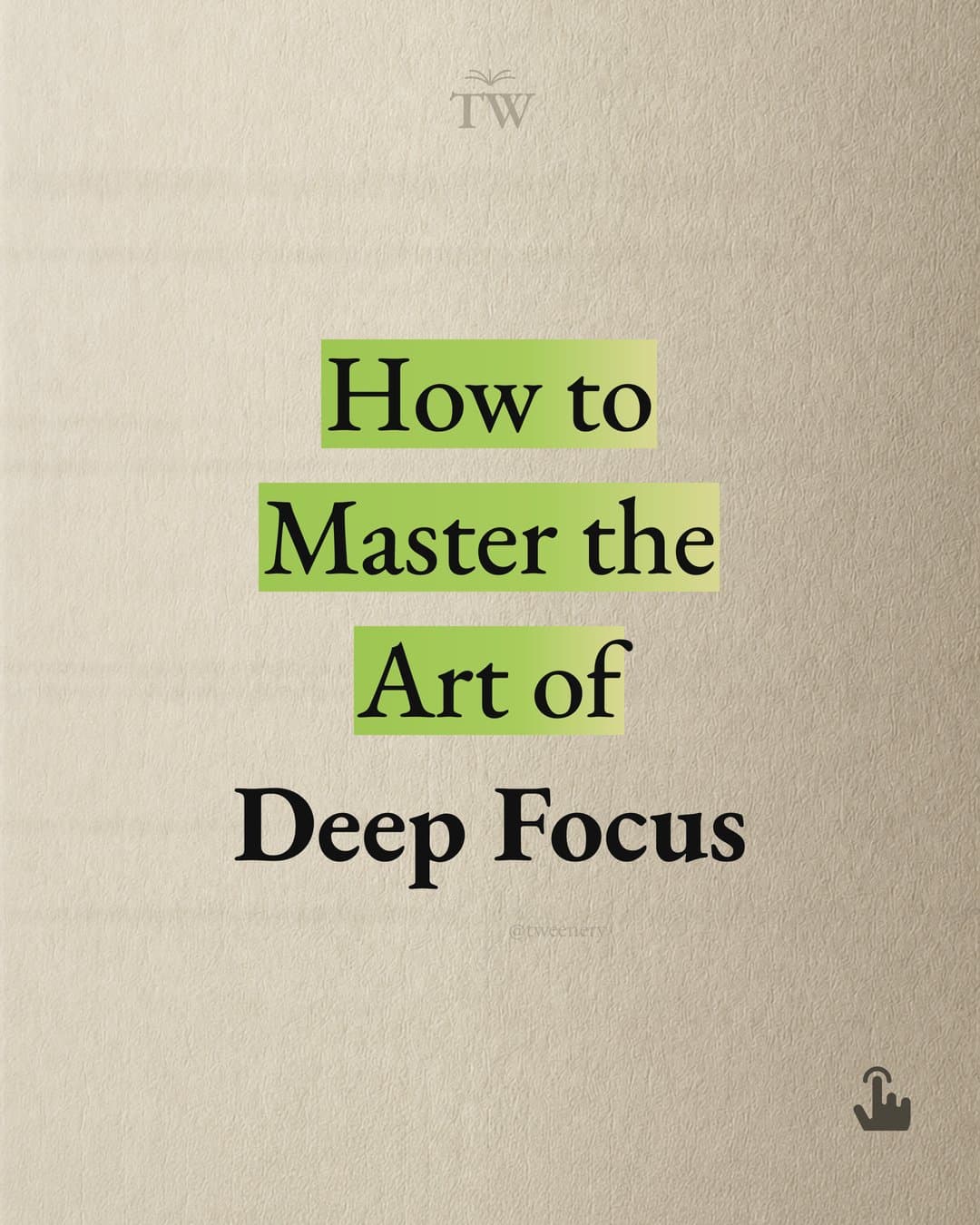
Highlighted serif

White on black
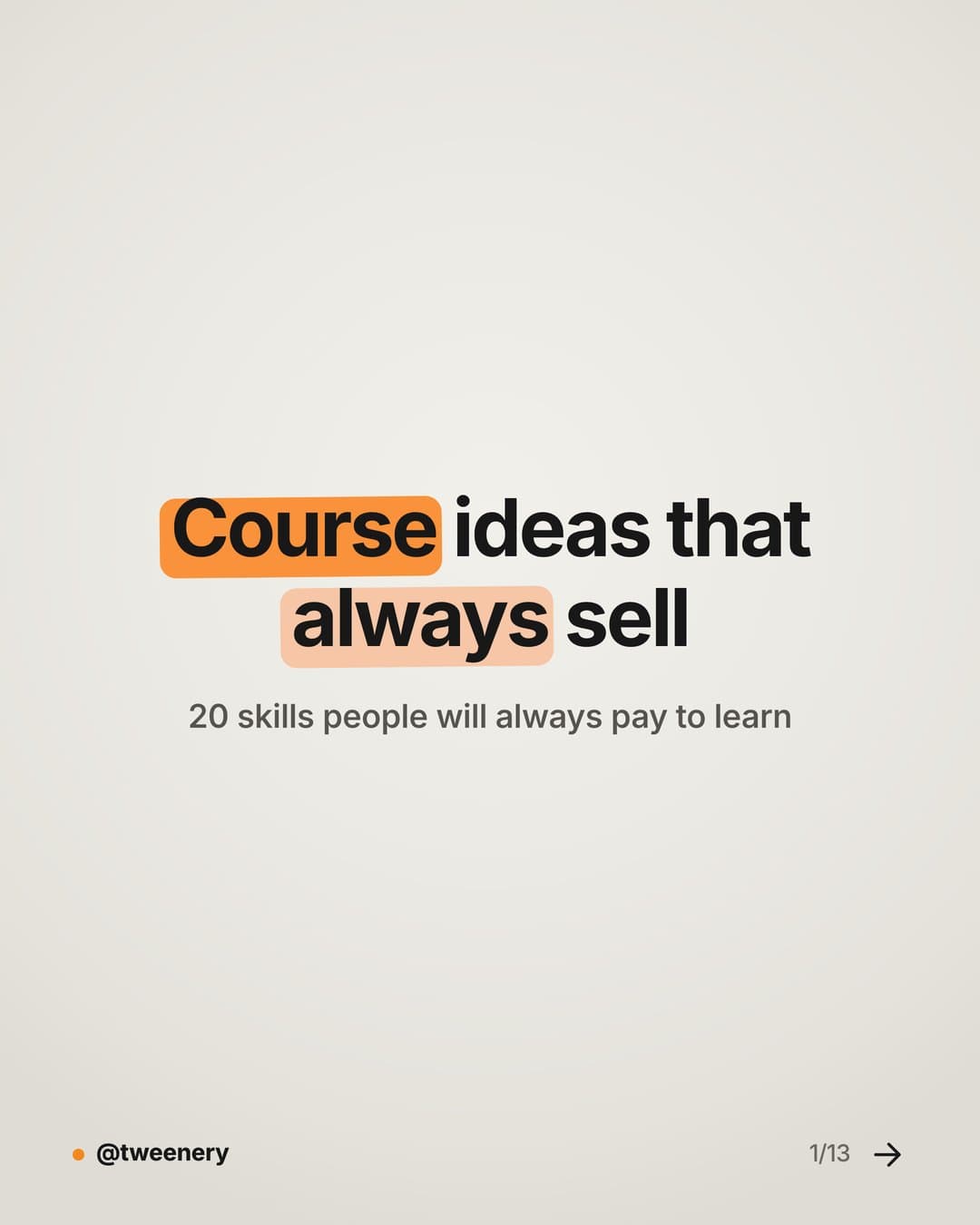
Marker highlight
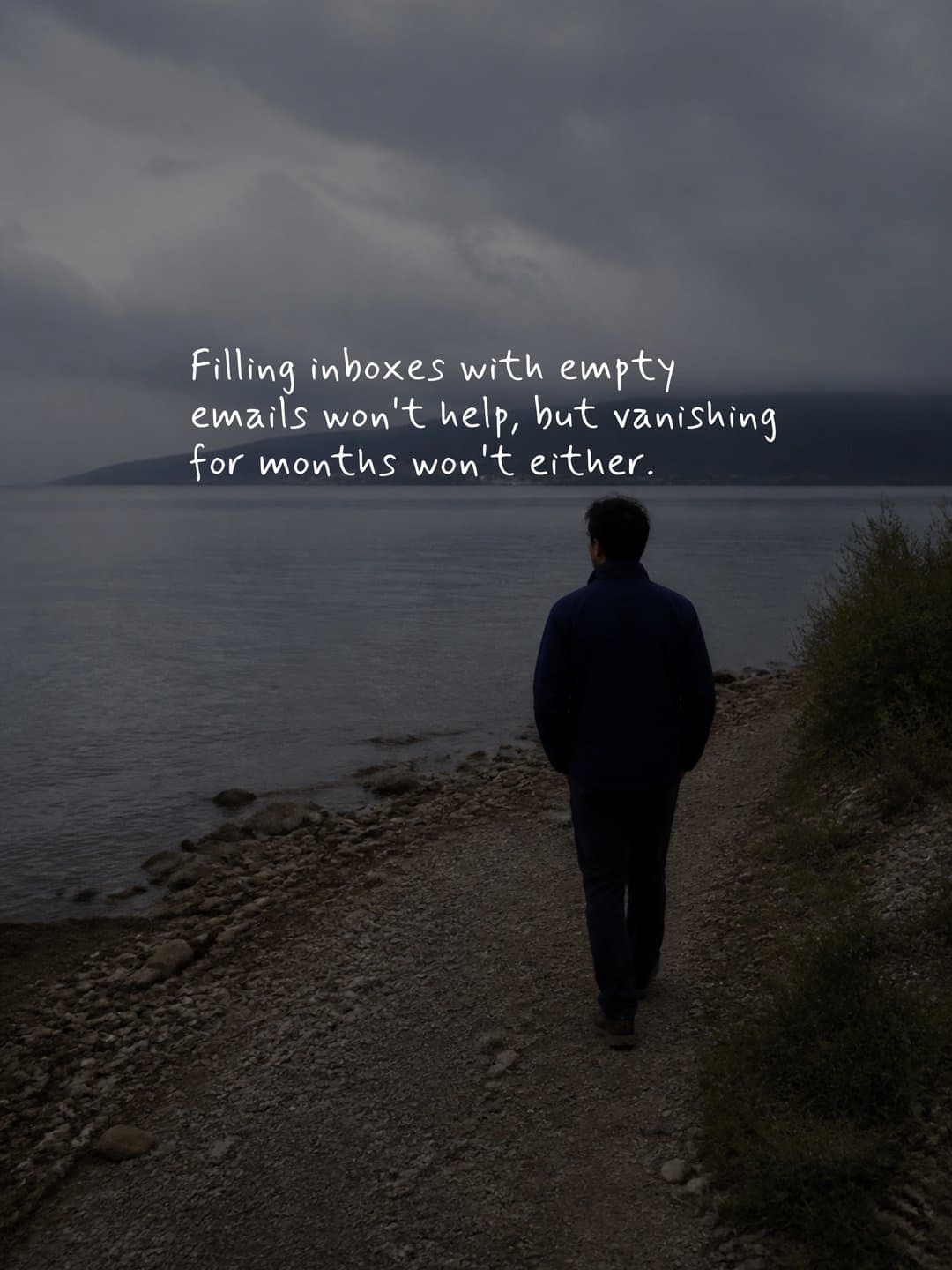
Text on dark photo
What you need
- Size: 9:16, 1080x1920 pixels, so each slide fills the screen.
- Format: PNG or JPEG.
- A layout: one text position, one font pair and one color palette you reuse.
Option 1: A design tool
Set up a 1080x1920 master slide with your fonts and text position, then duplicate it and change the words. You still write and adjust every slide by hand.
Option 2: An AI slideshow tool like Tweenery
Tweenery is an AI agent that makes text-on-image slides from one message. Describe the slideshow ("7 slides on morning habits, bold text, dark background") and it writes the copy, designs each slide at 9:16 (1080x1920) and renders the images, with the text placed away from the edges.
- Edit one slide. "Make slide 3's text shorter" changes only slide 3.
- Recreate a style. Paste a TikTok post link or screenshots to get an original slideshow on your topic in that style.
- Keep your brand. A saved brand profile holds your logo, colors, fonts and tone.
Export PNG, JPEG or a ZIP, upload in Photo mode and skip the text step. It's free to start, no card needed.
Upload tips for designed slides
- Number the files (01, 02, 03) so they're easy to select in order.
- Keep every slide the same size, or some get empty space around them.
- Don't add TikTok text on top of designed text.
How to make slide text easy to read
Words per slide
One idea per slide. Hook slides work best at about 5 to 10 words. Explanation slides can go to 25 or 30 words if the text is big and well spaced. If you need more, split it into two slides.
Hook
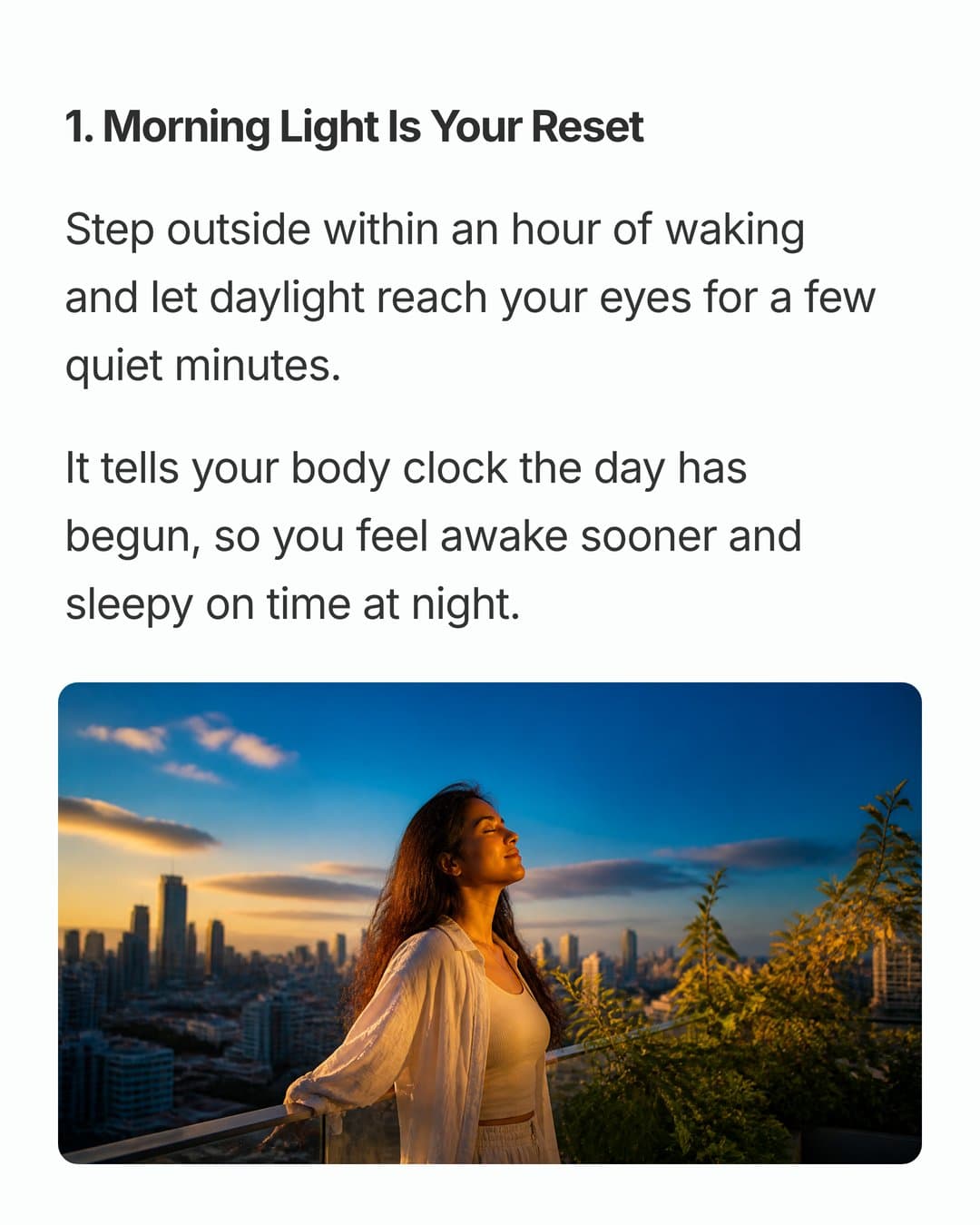
Habit 1
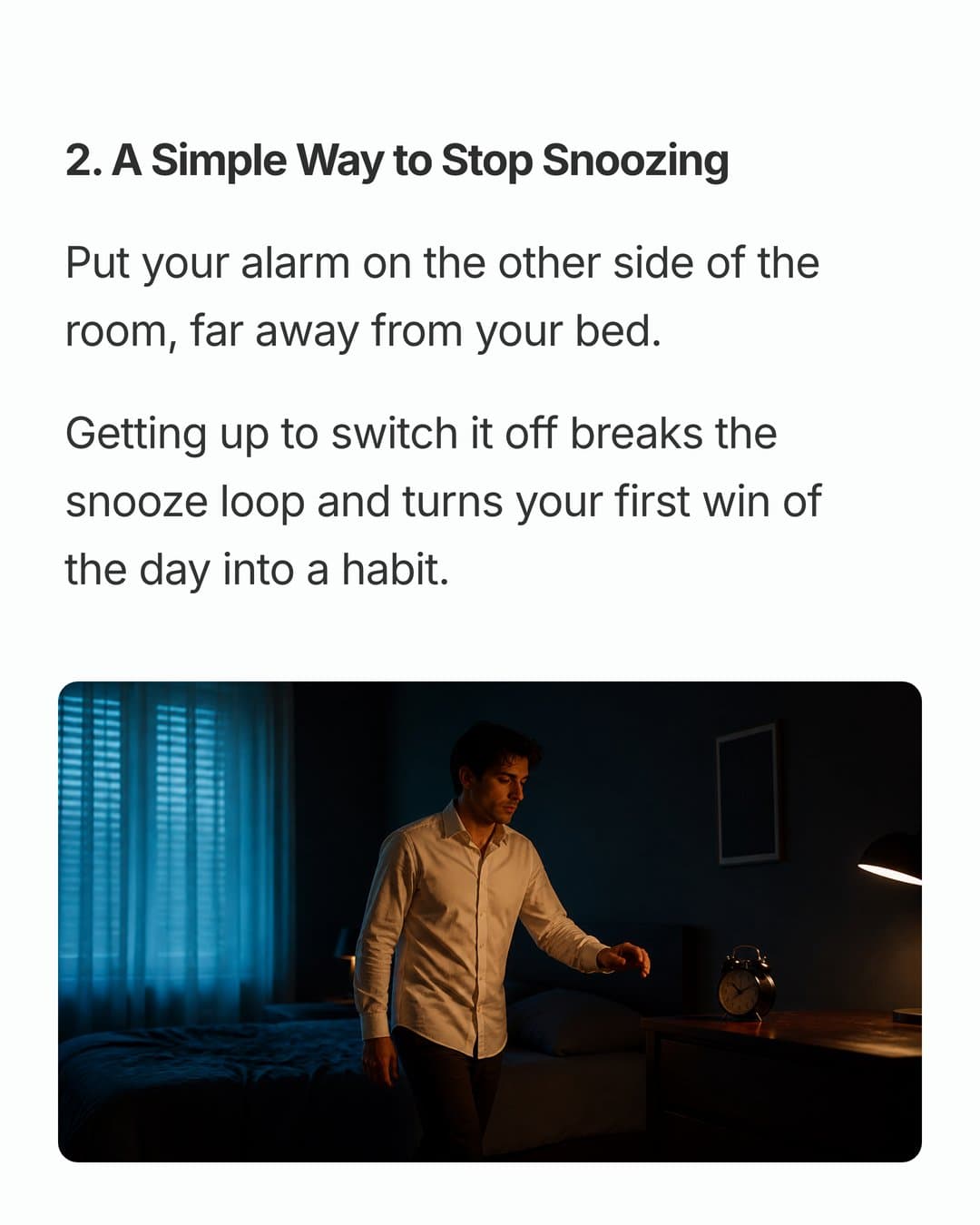
Habit 2
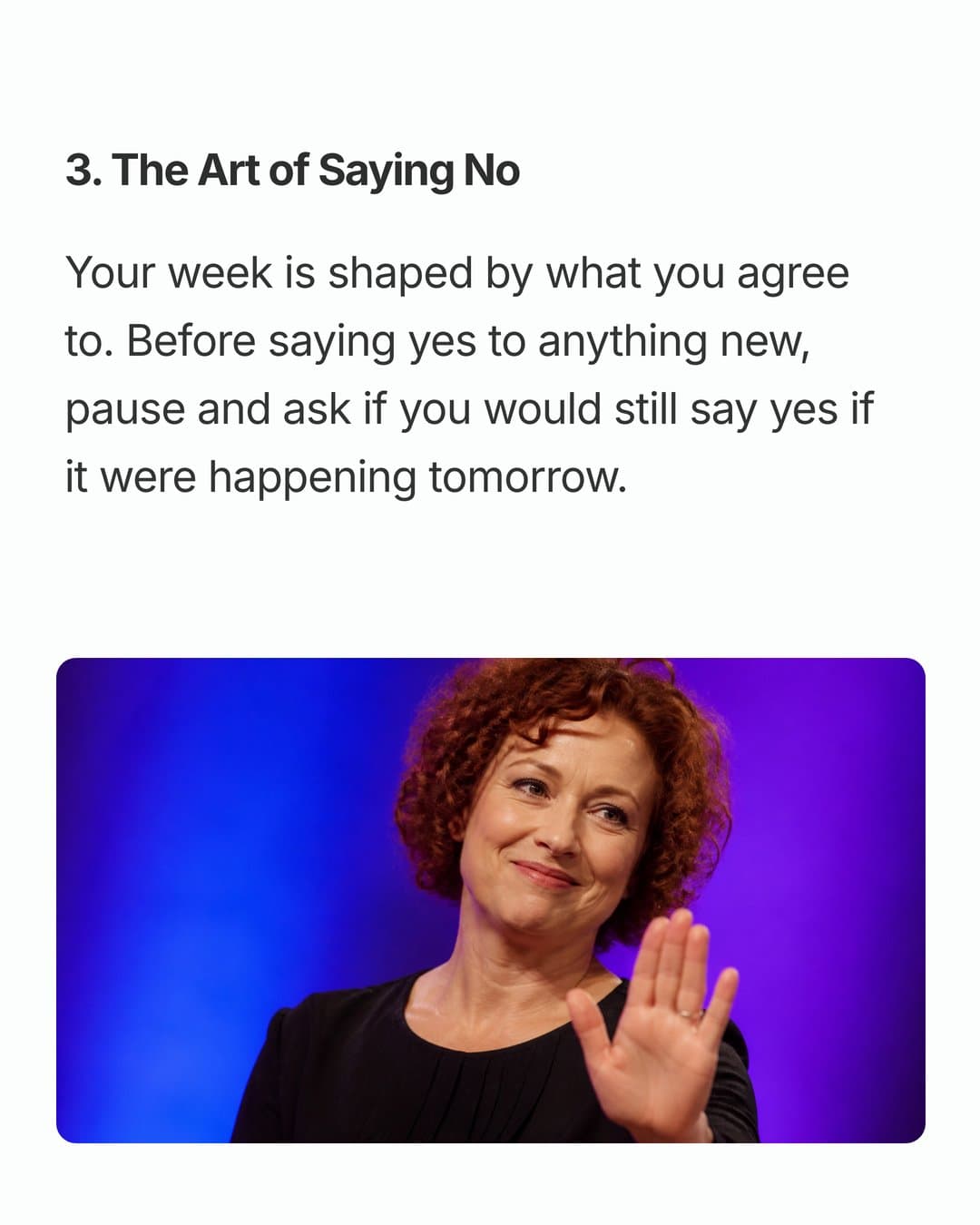
Habit 3
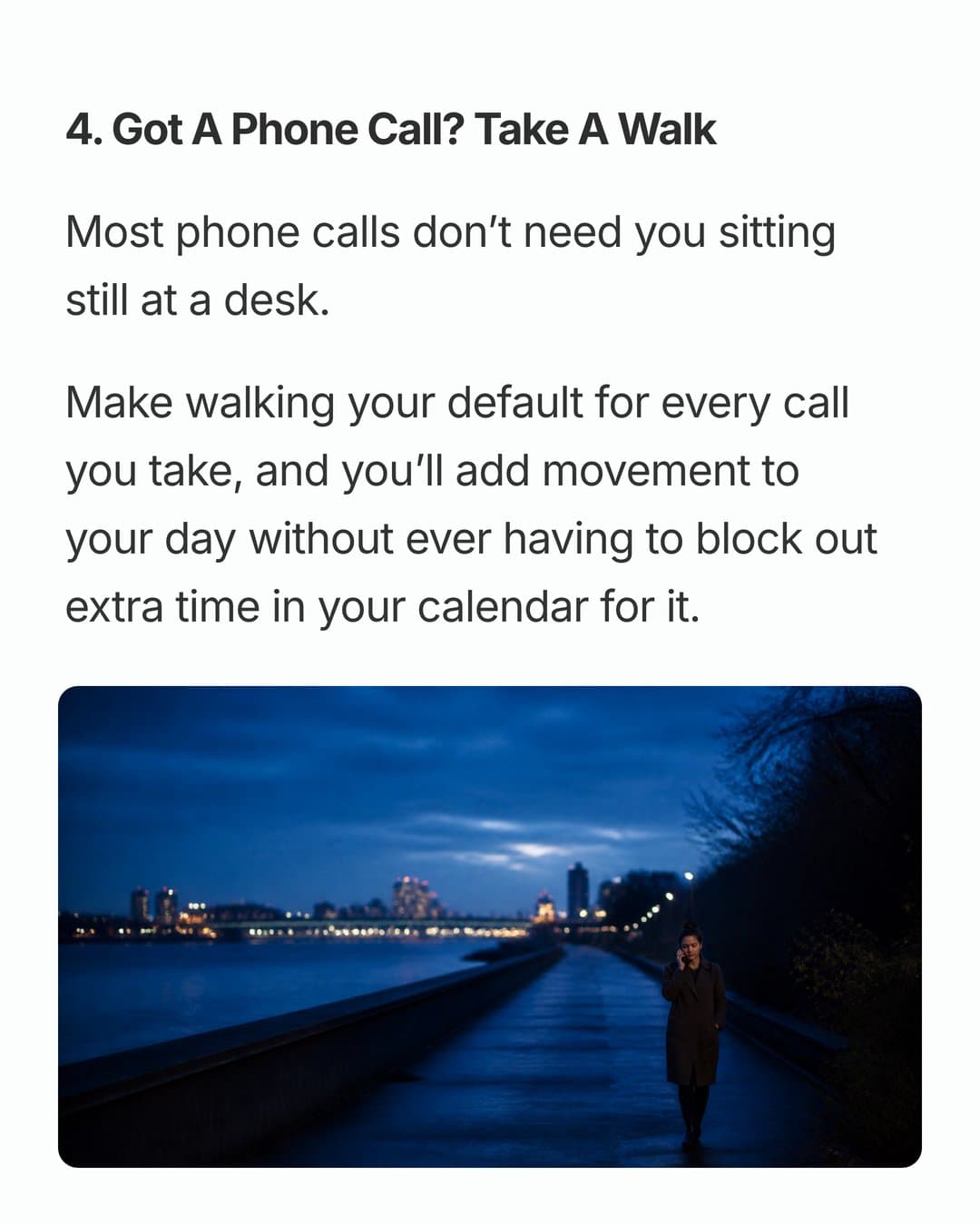
Habit 4
Text size
On a 1080x1920 slide, headline text around 70 to 100 pixels tall and body text around 40 to 55 pixels is a good starting point. If you have to zoom in on your own phone, it's too small.
Contrast
Dark on light or light on dark. On busy photos, put the text in a box or darken the photo. Thin white text on a bright photo is the classic scroll-past.
Hook
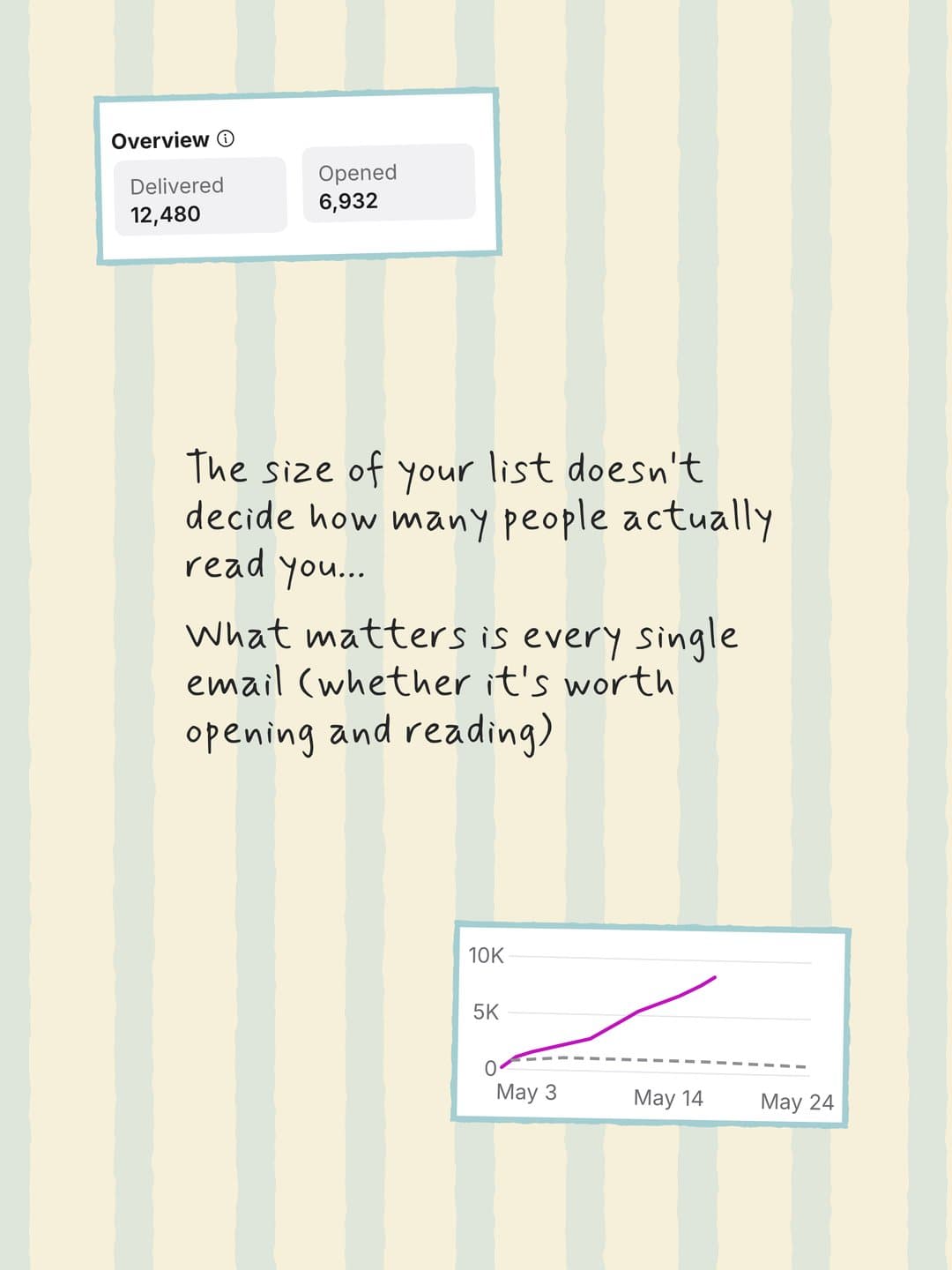
Problem
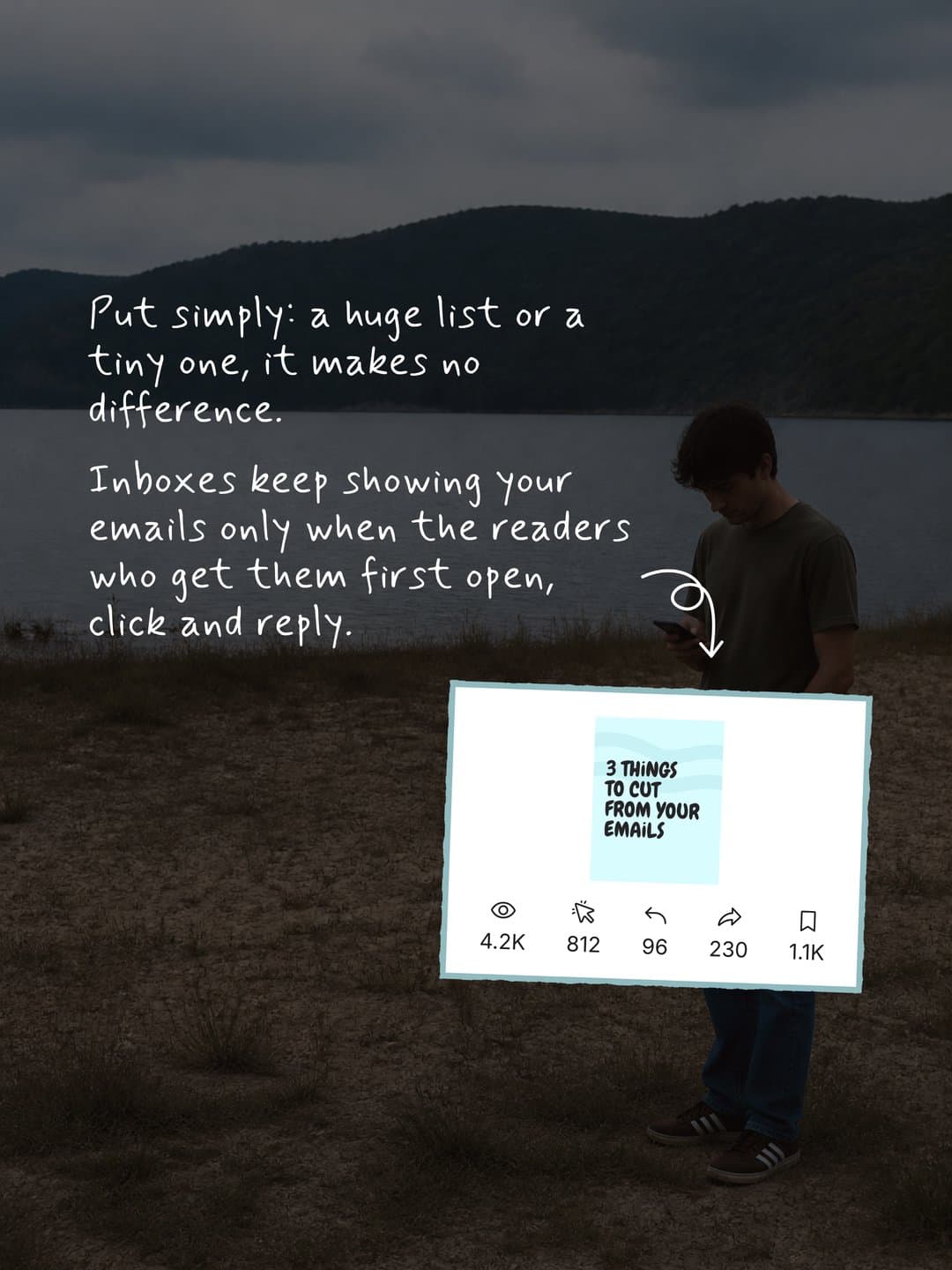
Text on photo
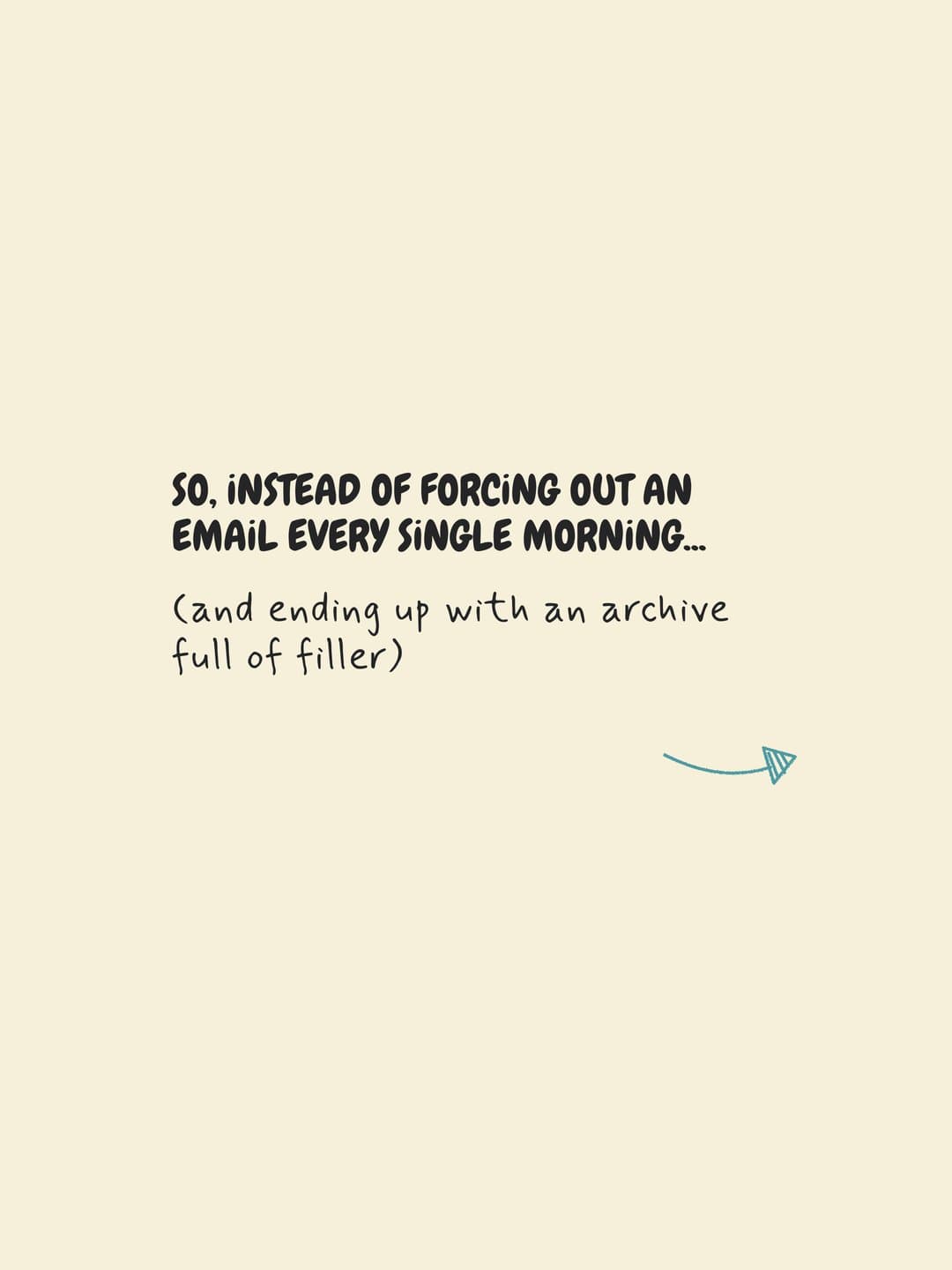
Turn
Fix
Checklist
Fonts and placement
Use one bold font for headlines and one clean font for body text, with generous line spacing. Avoid script fonts and all-caps paragraphs. Put text in the same spot on every slide so the eye doesn't have to search.
The first and last slide
The first slide is the hook: write it like a headline, with a number, a promise or a problem. The last slide tells people what to do next: save it, follow for part 2, or comment. For hook formats, see our Instagram carousel hooks, which carry over well to TikTok.
Common problems and fixes
- Text is hidden. Move it toward the center, away from the right edge and bottom.
- Text looks blurry. Upload at 1080x1920.
- Slides look inconsistent. Fix one font, size and position, or bake the text in.
- The post plays like a video. You used a template or the video editor. Use Photo, then Upload.
- Too much text. One idea per slide; extra detail goes in the description.
For what to put on the slides, browse these TikTok slideshow ideas.
FAQ
How do you put text on each picture in a TikTok slideshow?
After selecting your photos and tapping Next, swipe to each photo and tap Text. Repeat on every slide.
How many photos can a TikTok slideshow have?
Up to 35, according to TikTok's help center.
What size should TikTok slideshow images with text be?
1080x1920 pixels (9:16).
Can I make a text slideshow on TikTok from my computer?
Design the slides on your computer, send them to your phone and upload them in the TikTok app.
Can I edit the text after posting a slideshow?
Plan as if you can't: fixing a typo usually means reposting. Post as private first and check every slide.